
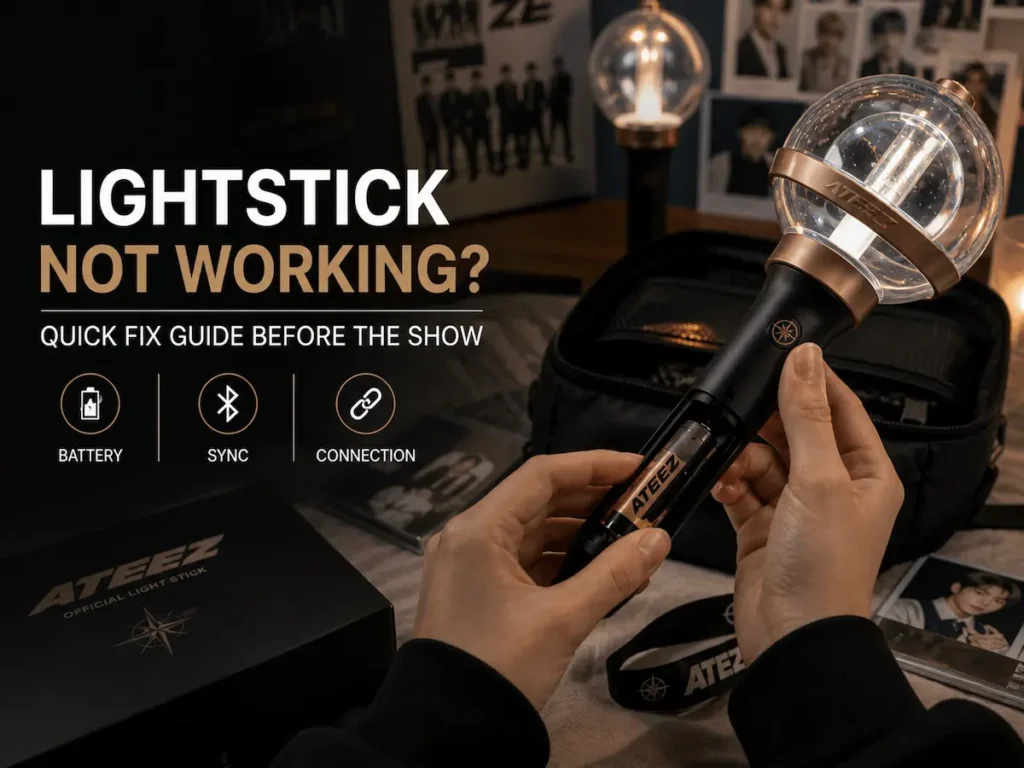
Most fans don’t think about their lightstick (the official light a group’s fandom waves at concerts) until the night before the show. That’s when the batteries come out of the drawer, the app gets downloaded for the first time, and something doesn’t work. That timing is no coincidence, because official lightsticks are designed around live shows, and live shows have a way of exposing every step you skipped during setup. This guide covers the common issues in the order they actually show up, from a dead battery to a firmware update nobody mentioned.
TL;DR: Most official lightstick issues come down to batteries, a skipped app step, or firmware you never updated, rather than a hardware failure. The Bluetooth sync feature only matters if you’re attending a concert; manual mode works on its own with no app at all. Fix the batteries first, then update and pair at home, days before the show.
- Start Here: Match the Symptom to the Fix
- Why Official Lightsticks Have More Setup Than You Expect
- Official Lightstick Won’t Turn On: What to Check First
- Official Lightstick Won’t Sync or Connect to the App
- Update the Firmware Before the Show
- Concert Day: Seat Pairing, Timing, and the Help Booth
- The Lightstick App: What It Actually Does
- Lightstick Flickering, Changing Colors Randomly, or Dimming
- Knockoffs and Why They Fail Differently
- When to Stop Troubleshooting and Replace It
- Common Questions About Lightstick Issues
- Bottom Line: Official Lightstick Troubleshooting
Start Here: Match the Symptom to the Fix
Nearly every lightstick problem has one visible symptom and one likely cause. Find yours below, then jump to the section that covers it. If none of these match exactly, start with the batteries anyway, since they are behind most of the rest.
| What it’s doing | Most likely cause | First thing to try |
|---|---|---|
| Nothing happens when you press the button | Dead, misaligned, or mismatched batteries | Reseat three fresh AAA alkalines, then check for a transport lock switch |
| Turns on, then goes dark after a few seconds | Batteries too weak to hold the LED load | Replace all of them at once, never mixing old and new |
| Glows red or noticeably dim | Low battery (on many models, red is the warning signal) | Swap in fresh batteries before the show, not during it |
| Doesn’t appear in the app at all | Bluetooth mode off, app outdated, or a version with no pairing chip | Switch the lightstick to Bluetooth mode, update the app, confirm your version pairs |
| Pairs at home, drops at the venue | Firmware not updated, or paired to the wrong seat | Update the firmware and re-pair the day before the show |
| Flickers or changes color on its own | Loose battery contact, or a preset mode cycling | Reseat the batteries, then hold the button instead of tapping it |
| White or green crust in the battery bay | Battery leakage and corroded contacts | Clean the contacts before trying anything else |
| Works fine at home, never syncs at a concert | Very often an unofficial lightstick | Check it against the authenticity guide |
Why Official Lightsticks Have More Setup Than You Expect
An official lightstick is more than a glowing handle: it is a synced device that talks to the venue. Most modern official lightsticks, such as the ARMY BOMB (BTS), the Candybong (TWICE) and the Nachimbong (Stray Kids), use Bluetooth to receive venue-wide color commands during concerts. That sync system requires an app, an account, and often a firmware update before the show.
Most issues trace back to one of four things: batteries not seated properly, the app not being updated, firmware left on an old version, or Bluetooth failing to register the lightstick. Each of those has a specific fix, and none of them require sending the lightstick back.
Pro tip: Check whether your lightstick takes AAA batteries, AA batteries, or a built-in rechargeable pack before concert day. The battery type is printed in the manual, and replacing it at the last minute at a venue is a bad experience.
Official Lightstick Won’t Turn On: What to Check First
The power button not responding is the most common issue, and it is almost always battery-related.
Battery Issues
Check the battery contacts first, because official lightsticks have tight compartments where batteries can sit slightly misaligned and still look fine. Remove them, check for corrosion on the contacts (a white or greenish residue), and reseat each battery firmly. Confirm the + and − ends match the diagram moulded into the compartment. It is an easy thing to get wrong in a dim room.
Most current official lightsticks run on three AAA batteries. Use alkaline, use them fresh, and replace all three at once. Mixing an old battery with two new ones drags the whole set down to the weakest cell, which is exactly how a lightstick ends up fading halfway through a concert. Generic batteries from a corner store often don’t hold enough voltage for the LED system to initialize at all.
If the batteries are seated correctly and still nothing happens, look at the metal spring at the negative end of the compartment. Springs get compressed flat over years of use and stop making contact. Easing one back up with a fingernail (not a metal tool) is a real fix, and a common one.
Some lightsticks also have a transportation lock switch, usually a small physical slider near the battery compartment or base. It’s easy to miss, and it disables the power button entirely. Check the manual for your specific version (here, “version” means the numbered edition of your group’s lightstick, like Ver.3 or Ver.4), since the controls change between them.
Corroded, Leaking, or Stuck Batteries
Batteries left inside a lightstick for months eventually leak. The giveaway is a white or blue-green crust on the contacts, and it stops the current before it ever reaches the LED. This is fixable at home, and it’s worth doing before you decide the lightstick is dead.
Wear gloves and eye protection, because the residue is caustic. Take the batteries out and put them aside for recycling. Mix equal parts white vinegar and water, dampen a cotton swab, and hold it against the corroded contact for five to fifteen minutes. Then scrub gently with a soft toothbrush, wipe with a clean damp cloth, and let the compartment dry completely, which means hours rather than minutes, before putting anything back in.
Batteries that have swollen and jammed in place need patience rather than force. Press the sides of the compartment to loosen them and lift them out with plastic tweezers, never metal ones, which can bridge the contacts. Some models house the cells in a removable three-battery cartridge, and replacing that whole cartridge is easier than rescuing a badly corroded one.
Pro tip: Take the batteries out when you get home from a concert. Leakage is the single most common way a working lightstick becomes a broken one, and it only happens during storage.
Rechargeable Models
If your lightstick has a USB-C or micro-USB charging port, plug it into a wall adapter rather than a laptop. Laptop USB ports often don’t supply enough amperage to charge the internal battery from zero. Give it 30 minutes before trying to power it on again.
Pro tip: Fully charge rechargeable lightsticks the night before, not the morning of the concert. Most take 1.5 to 2 hours from a dead battery, and venue-day power access is not guaranteed.
Official Lightstick Won’t Sync or Connect to the App
Bluetooth sync problems are the second most common issue, and they tend to surface exactly when they’re most stressful: at the concert venue, thirty minutes before doors open.
App Setup Before the Show
The app needs to be downloaded, opened, and logged in before the venue’s Wi-Fi becomes unreliable. Most official concert apps, whether Weverse (the fan platform many groups run their communities on), a fan club app or a lightstick app made for one specific group, require you to verify account ownership before activating the lightstick’s Bluetooth features. That verification step usually needs an active internet connection.
Do this at home, not in the parking lot. It takes less than five minutes when the connection is stable, and much longer when it isn’t.
Bluetooth Pairing Steps
If the app isn’t detecting the lightstick, go through this in order. First, confirm the lightstick is powered on and switched to Bluetooth mode, which on many models is a separate slider position rather than the normal on state. Second, confirm Bluetooth is enabled on your phone, and actively searching rather than just on in the background. Third, close the app entirely and reopen it, so that it starts a fresh scan. Fourth, move the lightstick within one meter of your phone and try pairing again. Fifth, if it still doesn’t appear, turn the lightstick off and on once more while the app is scanning.
Some apps also ask you to confirm a color match: the lightstick lights up, the screen shows a color, and you tap to confirm they match. If the colors don’t match, the app is talking to a different lightstick nearby rather than showing a fault, so move away from other fans and try again.
The Bluetooth range on official lightsticks during a concert is controlled by venue emitters, not by your phone, which only handles the initial registration. Once that’s done in the app, the venue system takes over.
When Your Version Can’t Pair At All
This is the check most fans skip, and it saves an hour of pointless troubleshooting. Older versions of many official lightsticks were built before the pairing system existed, so they have no pairing hardware inside. BTS’s official notices are explicit about it: ARMY BOMB Ver.1 and Ver.2 have no pairing function and will not work with seat synchronization, no matter how many times you reinstall the app.
The same logic applies across groups: if your lightstick is an early version and the app never finds it, the app is working correctly, because the lightstick simply predates the feature. It still works perfectly in manual mode, and if you’re not sure which version you have, our K-pop Lightstick List tracks the version history of 50 groups.
Phone-side quirks exist too, and official pairing notices have singled out specific handset models (the Galaxy S10 family, for example) as unreliable for lightstick pairing. If yours is one of them, pairing with a friend’s phone or at the venue’s help booth is faster than fighting it.
🔗 If you’re looking for your group’s official lightstick, browse our full collection of official Kpop lightsticks, which ships internationally.
Update the Firmware Before the Show
Firmware is the small program running inside the lightstick itself, separate from the app on your phone. Groups push updates to it before tours, usually to fix sync bugs or add support for a new show. A lightstick on old firmware can pair perfectly at home and still sit dark while the rest of the section changes color.
The update runs through the same official app you paired with. Open the app, connect the lightstick, and look for the update option in the top menu, usually labelled something like “Update Light Stick.” The transfer takes a couple of minutes and the lightstick needs to stay on and in range the whole time.
Two conditions decide whether the firmware update goes through or fails. First, the batteries have to be strong, because several official lightsticks block the firmware update outright on a low battery. That is a good design choice but a confusing error message if you don’t know about it, so put in three new alkalines before you start. Second, do it at home: official notices consistently warn that on-site congestion slows firmware updates and pairing to the point of failure, with thousands of phones hitting the same system in the same hour.
Pro tip: Update the firmware the week of the show, not the day of. If the update introduces a problem, you still have time to reinstall the app and pair again before it matters.
Concert Day: Seat Pairing, Timing, and the Help Booth
Concert sync takes more than “connect the lightstick,” since the venue system needs to know where you are sitting: the light patterns are drawn across the seating map. That’s why the app asks for your section, row, and seat from your ticket during pairing.
Pairing usually opens about a day before the first date of the run. Trying a week early looks like a broken app, but the window simply hasn’t opened yet. Check the group’s official notice for the exact time, then pair as soon as it does.
Three rules follow from the way the seat system works. First, enter the seat exactly as printed on your ticket. Don’t move to a different seat after pairing either, because your lightstick will keep lighting up for the seat you registered. And if you’re attending more than one night, re-pair for each show, because the registration doesn’t carry over.
If pairing still fails, venues running these tours normally staff a pairing booth near the entrance. The staff there pair lightsticks all day and have seen every failure mode, including yours. It is also the answer if you don’t have a smartphone at all, since a friend’s phone or the booth can register the lightstick for you.
🔗 Curious what the venue system is actually doing to your lightstick? We break the whole mechanism down in How K-pop Lightsticks Work.
The Lightstick App: What It Actually Does
Here’s the part that trips up a lot of buyers. The lightstick app is only relevant if you’re going to the concert. A lot of people download it, open it once, and never use it again. That’s completely fine, because it doesn’t affect the lightstick itself. The app is a concert control interface, not a requirement for normal use.
At home, your official kpop lightstick operates in manual mode. You cycle through colors and brightness levels with the physical button, with no app and no Bluetooth needed. The app’s only function is to hand off control to the venue system during a live show, so your light syncs with everyone else’s in real time.
If you’re not attending a concert, don’t troubleshoot the Bluetooth sync, because there’s nothing to fix. Manual mode is the default and it works independently.
Pro tip: If you bought your lightstick for display or casual use, you’ll never need to open the app. The concert sync feature is venue-specific and only activates when the tour’s control system broadcasts the signal.
Lightstick Flickering, Changing Colors Randomly, or Dimming
Flickering usually means one of two things: a loose battery connection or a low battery. Replace the batteries and check that each one clicks into position. If the flickering continues with fresh batteries, the LED panel itself may have an issue, which is uncommon on official products but not impossible if the item was stored incorrectly or dropped.
A lightstick that dims and turns reddish is telling you something specific. On many official models, a red or washed-out glow is the low-battery signal, not a color mode. Official concert notices warn about exactly this pattern: old batteries fade, then flash through the wrong colors, then cut out mid-show. If yours goes red an hour before doors, that’s the warning, and it’s a five-minute fix.
Random color cycling during normal use is usually the lightstick cycling through its preset modes. Hold the power button for two to three seconds instead of pressing it briefly, since many models distinguish between “press to change mode” and “hold to turn off.” Check the manual for your specific version’s button controls.
Dimming in cold weather is also documented with some models, because battery performance drops below 10°C / 50°F. Warming the batteries briefly in your hands before inserting them is a real fix for outdoor venues in winter.
🔗 Batteries cause most of these failures, and our guide on how to clean a lightstick and make it last for years covers the storage habits that prevent them.
Knockoffs and Why They Fail Differently
A knockoff lightstick at $12 won’t sync at a concert, and that’s not an opinion but how the system works. Official venue sync uses encrypted Bluetooth signals matched to registered official products, so an unofficial lightstick won’t receive those signals at all.
At home, a knockoff might look identical, since the light turns on and the color is close. But if you’re troubleshooting a lightstick that won’t appear in the official app no matter what you try, that’s often why: the app is designed to detect official hardware and won’t pair with an unregistered product.
🔗 If you’re not sure yours is official at all, run the checks in How to Tell If Your Lightstick Is Official.
The price gap between official and unofficial lightsticks has narrowed, but the feature gap hasn’t. If the checks point to a knockoff and you have a show coming up, replacing it is the only fix. The two below are the versions we ship most often, and both pair with their group’s official app.
When to Stop Troubleshooting and Replace It
There is a point where more troubleshooting stops being useful. If you have fitted three fresh alkaline batteries, cleaned the contacts, reinstalled the app, and attempted a firmware update, and the lightstick still won’t power on, the problem is hardware.
What happens next depends on where it came from. A lightstick bought new through the group’s own store or an authorized seller normally has an after-sales channel, and that’s worth using before anything else. A secondhand one usually doesn’t, since resale listings rarely carry the original warranty.
Once internal components have corroded, replacement is generally more practical than repair. The LED assembly, the board, and the battery bay are one sealed unit on most models, and there are no official spare parts sold for them. If the replacement is a gift for someone else, our K-pop gift ideas by budget cover official lightsticks and mini keyrings, plus when to order for the holidays.
Common Questions About Lightstick Issues
Make sure your Weverse account is verified and you have the correct fan club membership for your group. Some lightsticks require an active Weverse fancafe or fan club subscription to activate Bluetooth mode. Try reinstalling the app and re-pairing from scratch with Bluetooth freshly toggled off and on.
Yes, every official lightstick works in manual mode without any app or Bluetooth connection. You control it directly with the physical button, where each press cycles through colors and brightness levels. The app is only needed to participate in concert-wide sync during a live show.
This is almost always a low-battery issue, even with batteries that seem new. Replace with high-quality alkaline batteries (Duracell or Energizer) and ensure they are firmly seated. Some models also have an auto-shutoff feature if the button is held too long, so check your manual for the specific behavior.
Yes, and it is the most important question if you are buying specifically for a show. Only the version supported by the current tour will sync with the venue system, and early versions of many lightsticks have no pairing hardware at all. Check the official fan club announcement for which version is approved for that specific tour leg.
Only if you are attending a concert, but in that case it matters. Firmware is the software inside the lightstick, and groups push updates before tours so the sync works. Run the update from the official app at home, with fresh batteries, since a low battery can block the update entirely.
Pairing normally opens about a day before the first date of the run, not weeks ahead. Enter the seat exactly as printed on your ticket, stay in that seat during the show, and pair again for each night if you are attending more than one.
Wear gloves, remove what you can, and clean the contacts with a cotton swab dipped in equal parts white vinegar and water. Let it sit five to fifteen minutes, scrub gently with a soft toothbrush, wipe clean and dry the compartment fully before inserting new batteries. Use plastic tweezers rather than anything metal for a jammed cell.
Minor moisture exposure (sweat, light rain) is usually survivable if you power the lightstick off immediately and let it dry completely for 24–48 hours before turning it on again. Full submersion is a different situation, because most official lightsticks are not waterproof rated. If the internal components have corroded, replacement is generally more practical than repair.
Bottom Line: Official Lightstick Troubleshooting
Most lightstick problems aren’t hardware failures but setup steps that got skipped, and battery issues account for the majority of cases. App and firmware issues come second, and they almost always resolve with fresh batteries, a clean install, and a stable internet connection well before the venue.
The one thing worth knowing going into a concert: the app setup, the firmware update, and the seat pairing all belong at home, not at the venue. Everything else (the actual sync, the color coordination, the light show) is managed by the venue’s system, so your job is just to show up registered.
A lightstick that doesn’t sync at the concert is usually one that never got set up properly before it.


Pingback: BTS ARMY Bomb: Versions, Ver.4 vs Ver.3 & Buying Guide
Pingback: How K-pop Lightsticks Work: Bluetooth & Concert Sync
Pingback: K-pop Merch Customs Fees: You Won't Pay Extra (2026)
Pingback: How to Order K-pop Merch Online: A Global Buyer’s Guide – Lightstick Blog